
The QuizStage Game Show Editor is where you build the show before going live. It is the workspace for shaping categories, writing questions and answers, choosing a game mode, attaching media, preparing events, and setting up the board your audience will see during the live session.
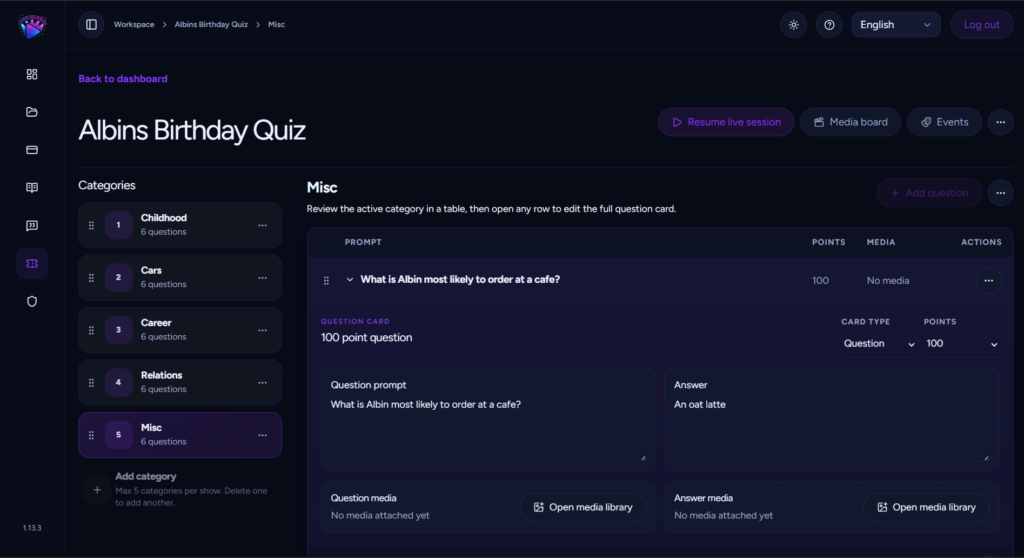
Start with the show structure
A QuizStage show is built around categories and questions. Categories become the columns on the live board. Questions become the tiles inside each category, usually with point values that increase as the questions get harder. A clean structure makes the live show easier to host because players can understand the board quickly.
Start by naming your show and choosing a few broad categories. For a pub quiz, that might be General Knowledge, Music, Movies, Sports, and Local Trivia. For a company event, you might use Company History, Team Facts, Product Trivia, and Wild Cards. Keep category names short enough to read on the public display.
Add questions and answers
Open a category and use the question controls to add cards. Each question should have a clear prompt and a clear answer. The prompt is what players see first. The answer is what you reveal during the live session. Good quiz questions are specific enough to avoid confusion but not so long that players lose the thread.
QuizStage supports a limited number of questions per category, so choose your strongest cards. If you are importing questions from the question bank, check the available slots in the current category before importing. The editor assigns the board structure so the live session remains clean and predictable.
Choose the right game mode
The Game Show Editor lets you prepare different styles of live quiz. In Classic mode, the host runs the room and players can answer out loud, on paper, or in teams. In Interactive mode, players join from their phones and submit text answers. In Buzzer mode, players join from their phones and buzz when a question opens, while the host sees the fastest responses in the Control Room.
Choose the mode based on the event. Classic is best for relaxed pub quizzes and parties. Interactive is useful when you want individual answers collected digitally. Buzzer mode works well for stage games, classrooms, team-building moments, and fast-response rounds.
Attach media to make questions stronger
Media can make a show feel more polished. Use the media library to upload reusable images, audio, and short video clips. You can attach media to question prompts or answers, or save clips for the Media board so they can be triggered live during the session.
Media is especially useful for picture rounds, music rounds, sound effects, visual reveals, reaction clips, and transitions between segments. Keep clips short and relevant. The goal is to support the host, not slow the quiz down.
Prepare events and special moments
Events are live moments you can trigger from the Control Room, such as bonus rounds, double points, steal points, sound checks, or spin-the-wheel style moments. They help break up the rhythm of a standard question board and make the show feel more like a hosted game.
If you plan to use events, create them before the session starts. That way they are ready in the Event board and you do not need to improvise while hosting.
Review before going live
Before starting a live session, review every category and question. Check spelling, answer clarity, media attachments, and point balance. Make sure the first few questions are easy enough to get the room moving, then increase difficulty as the round progresses.
When the show is ready, start or resume a live session. The editor prepares the content; the Control Room runs it. During the live session, the host opens tiles, reveals answers, manages players, updates scores, and controls what appears on the public display.
Reuse and improve your shows
One of the biggest advantages of QuizStage is that shows are reusable. After an event, you can return to the editor, adjust weak questions, add better media, change categories, or prepare a new version for the next quiz night. Over time, you can build a library of formats for recurring pub quizzes, company events, classroom games, or family parties.
Open QuizStage and build your next game show, or visit QuizStage to learn more about browser-based live quiz hosting.