
Game Show Editor
Create the structure of your live quiz before the room ever sees it. The QuizStage Game Show Editor is where hosts build reusable game shows with categories, question cards, answers, point values, media, events, and game modes.

What The Game Show Editor Does
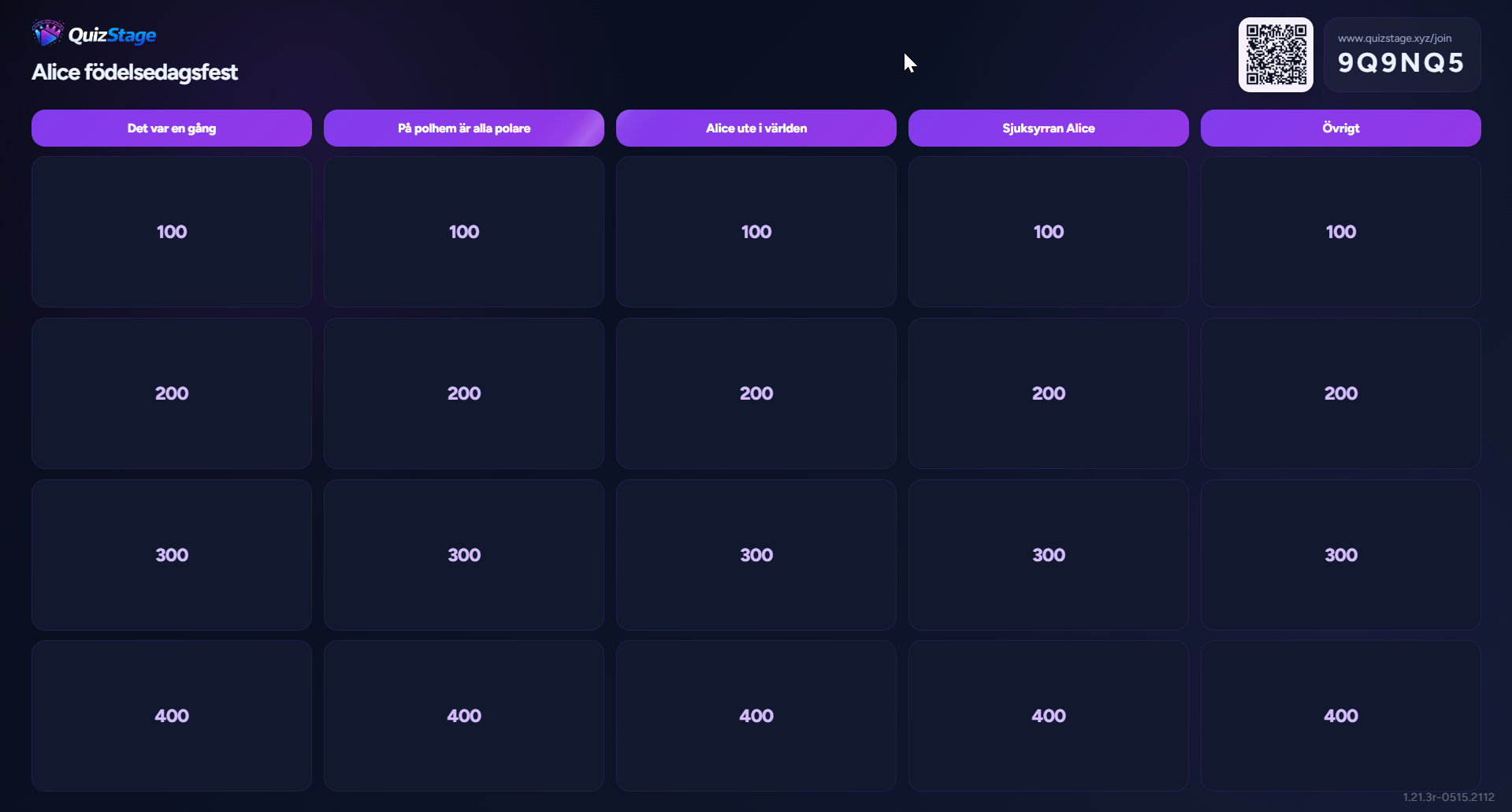
The Game Show Editor turns a loose list of trivia questions into a clear live game board. You create categories, add questions, write answers, set point values, and prepare the flow your audience will later see on the public display.
Instead of building a slide deck or juggling a spreadsheet, you work inside the same structure you will host from later. Categories become columns on the board. Questions become selectable tiles. Answers are ready for controlled reveals. Media and events can be prepared before the live session so you are not improvising during the show.
This makes the editor useful for pub quiz nights, company trivia, classrooms, parties, and recurring quiz formats. You can build a show once, run it live, then return later to improve it or reuse the format for another event.


Why Hosts Use It
Most quiz setups start simple and become messy. Questions live in a document, images sit in a folder, scores live in a spreadsheet, and the host jumps between tools. That can work for a casual game, but it becomes stressful when the room is watching.
The Game Show Editor gives the host one place to prepare the board. It helps you see whether a category has enough questions, whether the difficulty curve makes sense, and whether the live show will be readable on a big screen.
It also helps avoid one of the most common hosting mistakes: writing questions without thinking about the live experience. A good quiz board needs short category names, clear prompts, confident answers, and enough structure for players to follow along.
Engage with Custom Events
Events let you add live show moments that go beyond standard question-and-answer cards. In the Game Show Editor, you can prepare event cards such as bonus rounds, double points, steal points, sound checks, spin-the-wheel moments, or any custom surprise you want to trigger during the session.
Events are useful when you want the quiz to feel less predictable. A normal board keeps the game structured, while events give the host room to create energy, change the stakes, or reset the room between rounds. For example, you might hide a “Double points” event behind a tile, trigger a quick bonus challenge, or use the spinning wheel to choose which player gets the next attempt.
Once events are created in the editor, they are available in the live Control Room or as a tile in the board. An event placed in a board tile can either be hidden so it comes as a suprise, or shown from the beginning. The host can also trigger events from the control room. This makes events a good fit for pub quizzes, company games, classroom reviews, birthday trivia, and any show where the host wants a few memorable twists.


Browse A Ready Set of Questions
The Question Bank helps you build shows faster by importing ready-made question and answer pairs into your current category. Instead of writing every question from scratch, you can browse available question categories, review prompts and answers, select the rows you want, and import them into the active show category.
Questions in the bank are loaded from Open Trivia Database, a free-to-use trivia question API. This gives you a broad starting point across general knowledge, entertainment, science, history, sports, geography, and more. Because the questions come from an external public database, it is a good idea to review and edit imported questions before using them in a live show, especially if you want a specific tone, difficulty level, or audience fit.
Imported questions are treated as normal show questions after they are added. You can edit the wording, adjust the answer, attach media, or replace anything that does not fit your audience. The bank is best used as a drafting accelerator: pick useful questions, customize them for your event, and turn them into a polished game show inside the editor.
Make Your Quiz Look Unique
Display themes let you change the look and feel of the public screen for a live show. In the Game Show Editor, you can choose the visual style your audience will see when the quiz is running on a TV, projector, monitor, or shared stream.
Themes are useful because different events need different energy. A company trivia session may need a cleaner, more polished look, while a birthday party, classroom game, or pub quiz can use something more playful. Choosing a theme helps the board, question cards, answer reveals, and scoreboard feel more intentional before the show even starts.
The selected theme is saved with the show, so the public display opens with the right style when you start a live session. You can also adjust the display theme from the Control Room during a live session if you want to change the room’s presentation without rebuilding the show.

How It Works In QuizStage
Start by creating a show and choosing a game mode: Classic, Interactive, or Buzzer. Classic is best for host-led quizzes with manual or team scoring. Interactive lets players submit answers from phones. Buzzer lets players buzz from phones when a question opens.
Next, add categories. Keep them short and specific: Music, Movies, Company History, Local Trivia, Picture Round, or Final Round. Then add questions inside each category. Each question has a prompt and answer, and can be prepared with the point value that appears on the live board.
If your show needs more personality, attach media or prepare event moments. Media can support picture rounds, audio questions, answer reveals, reaction clips, or atmosphere. Events can create bonus rounds, steal points, double points, or spin-the-wheel moments during the live game.
When the show is ready, start or resume a live session. The editor prepares the content; the Control Room runs it live; the Public Display shows the room what is happening.

Frequently Asked Questions
Can I reuse a show?
Yes. QuizStage shows are reusable, so you can return to a show, edit questions, adjust categories, and run it again later.
Do I need to finish the whole show before going live?
You should review the show before hosting, but the editor is designed for iteration. You can improve shows over time.
Can I add media to questions?
Yes. QuizStage supports reusable media, including images, audio, and short video clips, depending on your plan and setup.
Which game mode should I choose?
Use Classic for host-led trivia, Interactive for phone answer submissions, and Buzzer for fast-response rounds.