
Scoring is one of the easiest places for a live quiz to become messy. Paper score sheets, spreadsheet tabs, and manual leaderboards can slow the host down. QuizStage keeps player management and scoring inside the live host control room.
This guide explains how to add players, update scores, and use the public scoreboard during a live quiz.
Choose Classic or Interactive mode
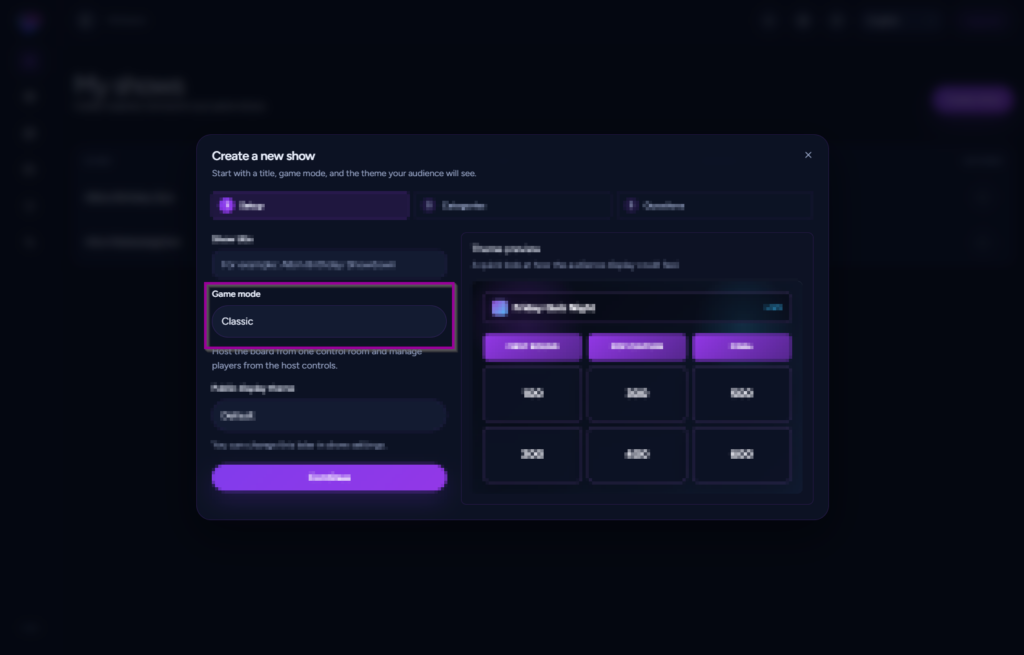
QuizStage supports two hosting styles. In Classic mode, the host manages players and scores from the control room. This works well for pub quizzes, party games, and events where teams answer on paper or out loud.
In Interactive mode, players can join from their phones and take part live. This works well when you want player submissions to appear inside the host workflow.
Add players or teams
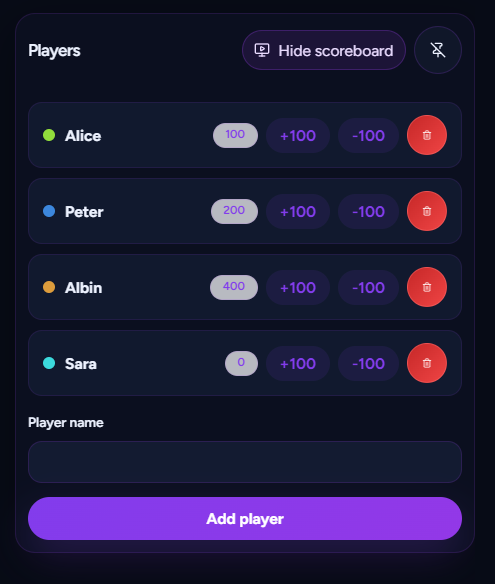
During a live session, open the players panel and add each player or team. Use short names that are easy to read on the public scoreboard.
For pub quizzes and company events, teams usually work better than individual players. For classrooms or small games, individual names can make the quiz feel more personal.
Update scores during the game
As questions are answered, update scores from the host control room. You can adjust scores during the session without leaving the live board.
Keep score updates consistent. For example, decide whether each correct answer gets the card’s point value, a flat score, or bonus points for harder rounds.
Show the scoreboard at the right moments
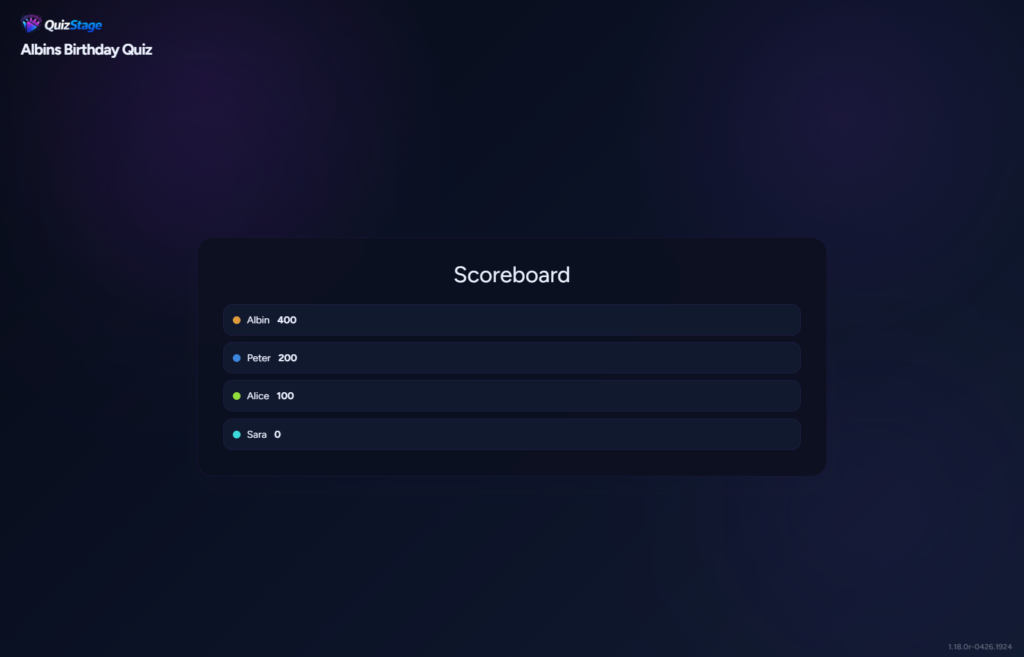
The scoreboard is most effective between rounds, after a high-value question, or before the final round. Showing it too often can slow the rhythm of the game, but showing it at key moments keeps players invested.
Use scoring to create tension
Good scoring makes the event feel alive. Try these simple patterns:
- Use higher point values later in the quiz.
- Add a final round that can change the standings.
- Show the scoreboard before the last category.
- Keep team names visible and readable.
- Use the same scoring rules for every team.
Interactive mode and player submissions
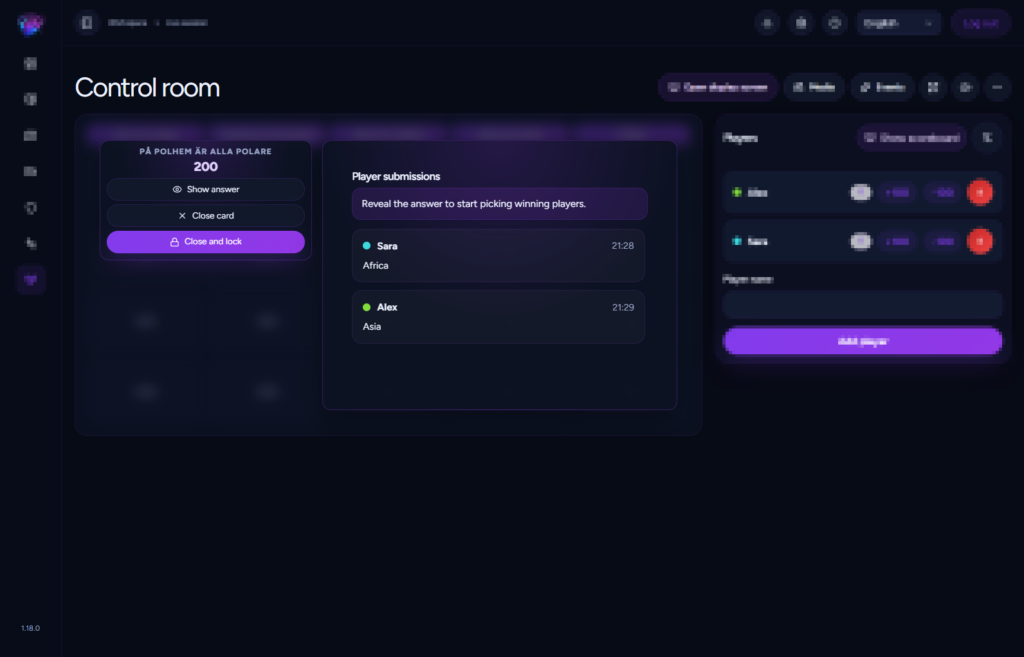
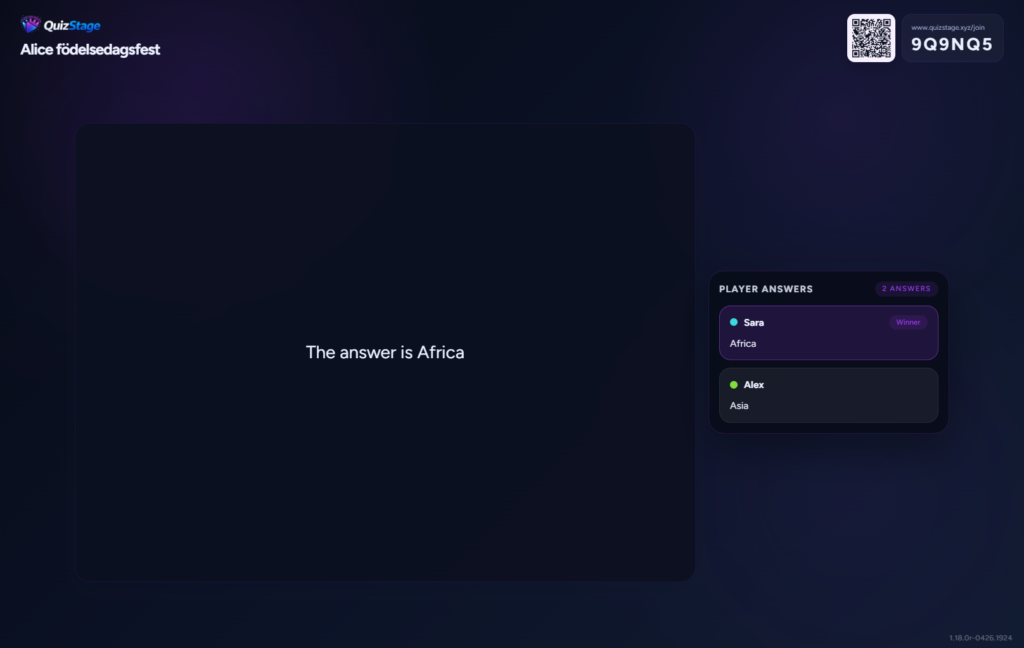
In Interactive mode, players can join from their phones and submit answers for live questions. After the answer is revealed, the host can select winning submissions and award points when the card is locked.
Scoring checklist
- Add players before the first scored question.
- Use short team names.
- Confirm the scoring rules before the game starts.
- Show the scoreboard between rounds.
- Do a quick score check before the final round.
Track scores without leaving the live show
QuizStage keeps players, scores, questions, and the public display in one live hosting workflow, so you can focus on running the room.