
The QuizStage Control Room is the private host view for running a live quiz. It is where you open questions, reveal answers, lock played cards, manage players, adjust scores, trigger media clips, and keep the public display in sync. The audience should see the public display screen; the host should keep the Control Room on a laptop or private monitor.
Start with the public display
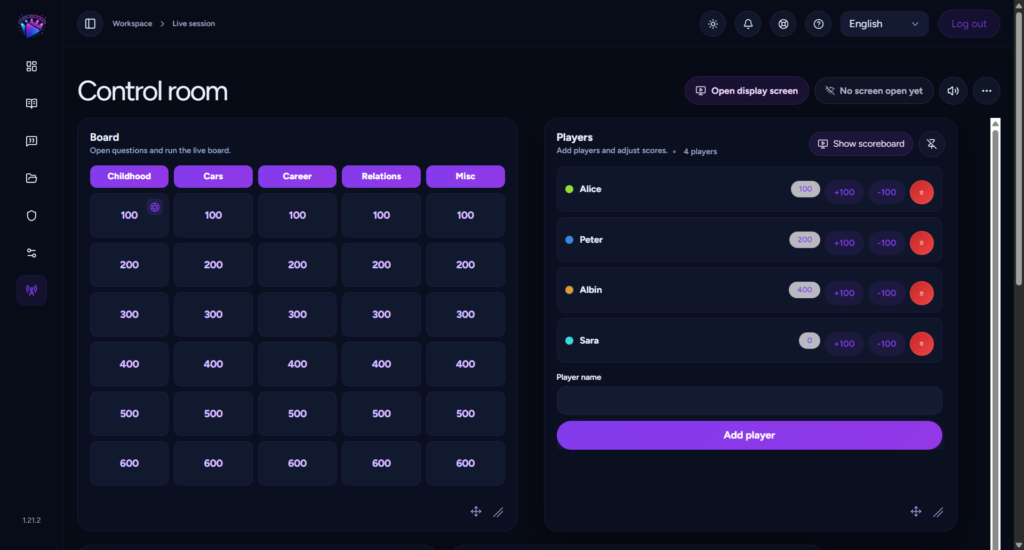
Before opening the first question, use Open display screen from the top toolbar. This opens the audience-facing screen in a new tab or display window. Put that screen on a projector, TV, monitor, or Chromecast-compatible display. The display presence indicator tells you whether a public screen is listening. If it says no screen is open yet, the audience display is not connected. When one or more displays are open, the indicator updates so you know the room is following along.
You can also adjust Display audio from the Control Room. This changes the audio volume on connected public displays, which is useful when playing clips, countdown audio, or media board moments.
Use the board window to run questions
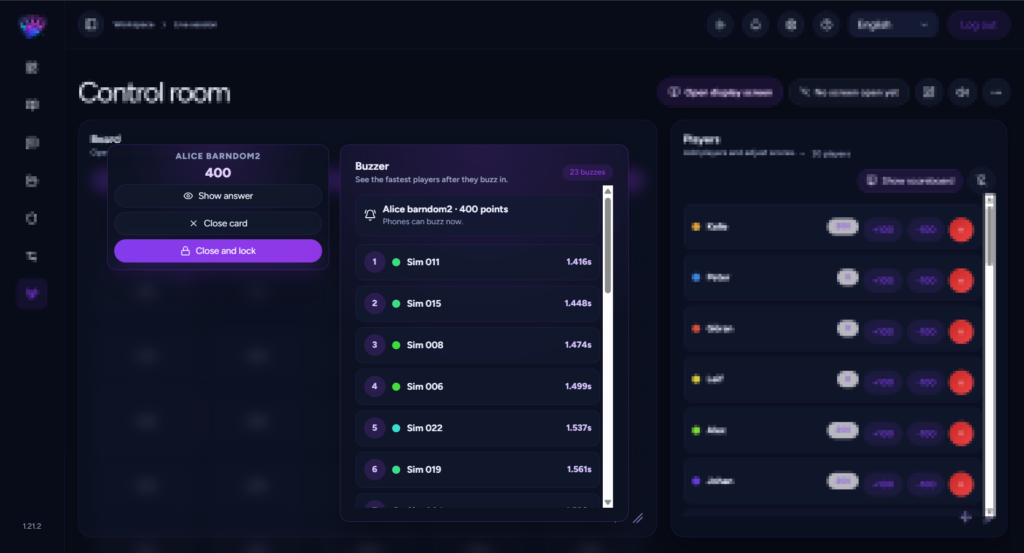
The main board window shows your categories and question tiles. Click a tile to open it live. The public display changes from the board to the active question, while the host gets a compact action card. From there you can reveal or hide the answer, close the card, or close and lock it. Locking marks the card as played so it cannot be opened again during that session.
For a typical question flow, click a tile, let players answer, click Show answer, handle scoring, then choose Close and lock. If you opened a card by mistake, use Close card to return to the board without locking it.
Manage players and scoring
The Players window is where you add players or teams and adjust points during the game. Enter a player name, add them to the session, then use the score controls to add or subtract points. The window also shows the current player count, which helps when you are running a larger room or a phone-based game mode.
Use Show scoreboard when you want the audience to see current scores on the public display. For suspense, many hosts keep the scoreboard hidden between rounds and reveal it at planned moments.
Interactive and buzzer modes
If the show uses Interactive mode, the Control Room can show player submissions for the open question. Reveal the answer first, then select the correct submissions. When you lock the card, QuizStage can award the question points to selected winners.
In Buzzer mode, players join from their phones and see a large buzz button when a normal question opens. The Control Room shows the fastest buzzes sorted by response time. Click a buzzer row to jump to that player in the Players window, then update the score manually after hearing their spoken answer.
Play media and trigger events
The Media board lets you play saved clips on the public display. These can be sound effects, reaction videos, images, transitions, or short atmosphere clips. Use Manage media to choose which library items are available on the show board, then click Play on display during the live session. The media remote option gives a phone-friendly page or QR code so a co-host can trigger clips from another device.
The Event board is for live moments such as bonus rounds, sound checks, steal points, double points, or spin-the-wheel moments. Events appear as their own live actions and can be closed when the moment is finished.
Arrange the workspace
Board, Players, Media board, and Event board are movable and resizable windows. Use the move handle to reposition a window and the resize handle to change its size. The layout snaps to a grid and is saved in your browser for that show, so you can set up the Control Room the way you like. If the layout gets messy, use Reset layout from the more menu.
Reset or end the session carefully
Reset session clears players, unlocks cards, and returns the session to a fresh board. Use it only when you want to replay or restart. Ending a session stops the live game for connected screens and players. These actions are intentionally behind confirmation steps because they affect everyone in the room.
Host with a simple rhythm
A smooth QuizStage live flow is simple: open the display, add players, click a tile, reveal the answer, update scores, lock the card, and move to the next tile. Use media, events, countdowns, and scoreboards as accents around that core rhythm. Once the Control Room is set up, the host can run a polished quiz show from the browser while the audience follows everything on the big screen.
Create your first live quiz show with QuizStage, or visit QuizStage to learn more about browser-based quiz hosting.