
The host control room is the private command center for a live QuizStage session. It lets you run the board, control what appears on the public display, manage players, update scores, and trigger media without leaving the live hosting view.
This article explains the main controls and how to use them during a show.
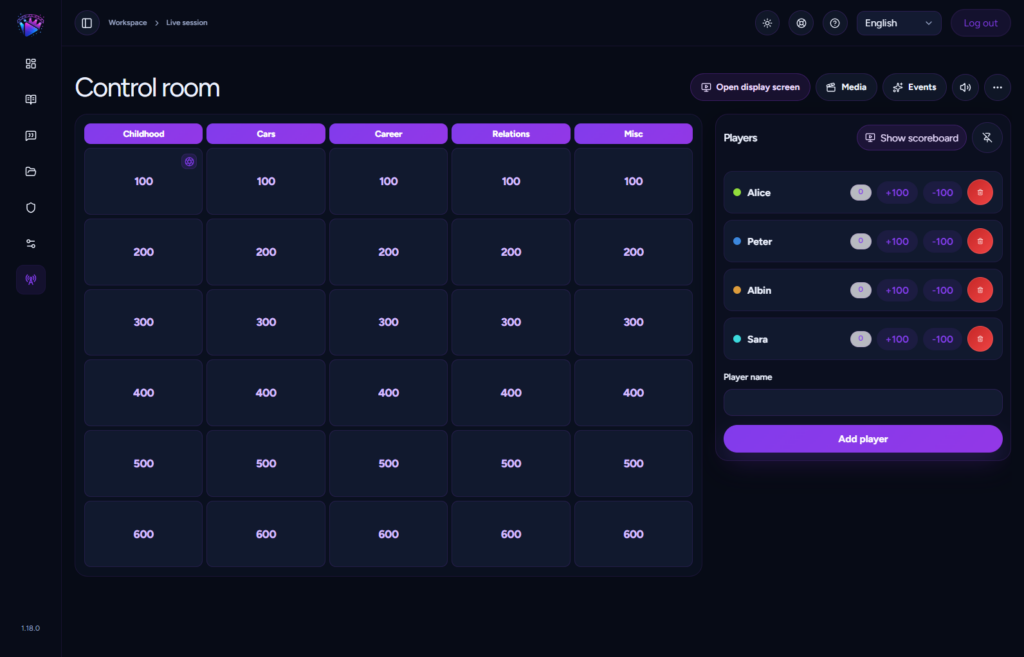
Open a card
The board in the host control room mirrors the structure of your show. Click a question card when you are ready to play it. QuizStage sends that card to the public display so players can read the prompt.
Use this flow when hosting: open the card, read the question, give players time to answer, reveal the answer, then lock the card.
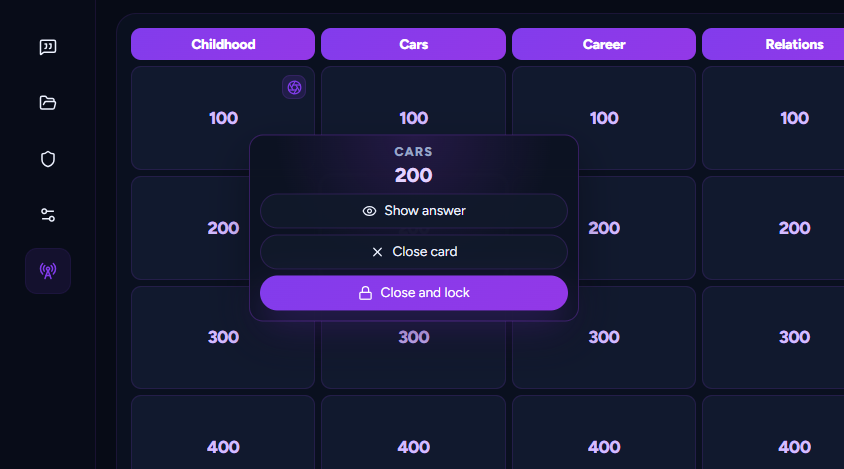
Reveal or hide the answer
The answer stays hidden until you choose to show it. This gives you control over pacing and prevents the audience display from revealing too much too soon.
If you reveal the answer early by mistake, use the same control to hide it again while the card is still active.
Lock played cards
After a card has been played, lock it. Locking helps the room see which questions are finished and keeps the board organized as the quiz progresses.
For a smooth rhythm, close and lock each card before moving to the next one.
Show or hide the scoreboard
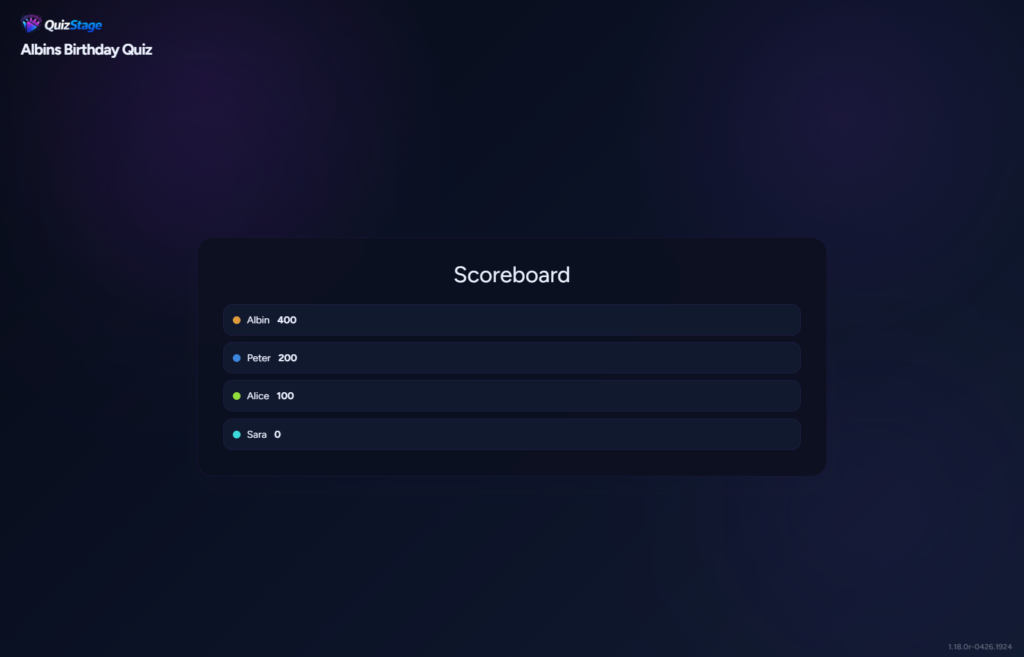
Use the scoreboard between rounds, after big questions, or near the end of the game. The scoreboard gives the room a shared sense of progress and helps build tension.
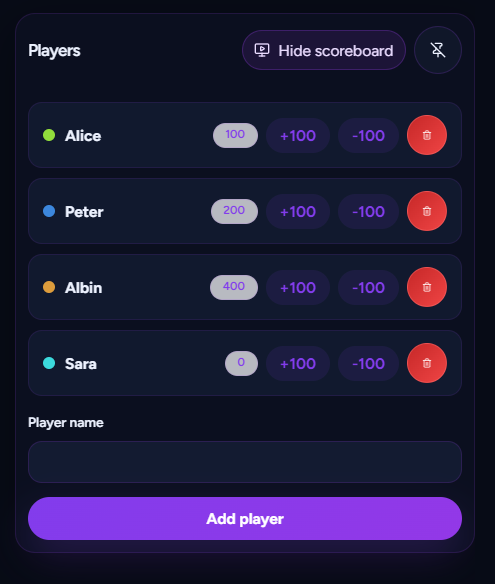
Manage players and scores
The players panel lets you add players, adjust scores, and track the current standings. In Classic mode, the host manages players from the control room. In Interactive mode, players can join from their phones and submit answers live.
Open the public display
The host control room includes actions for opening the public display. Keep the host control room private and place the public display on the screen your audience will see.
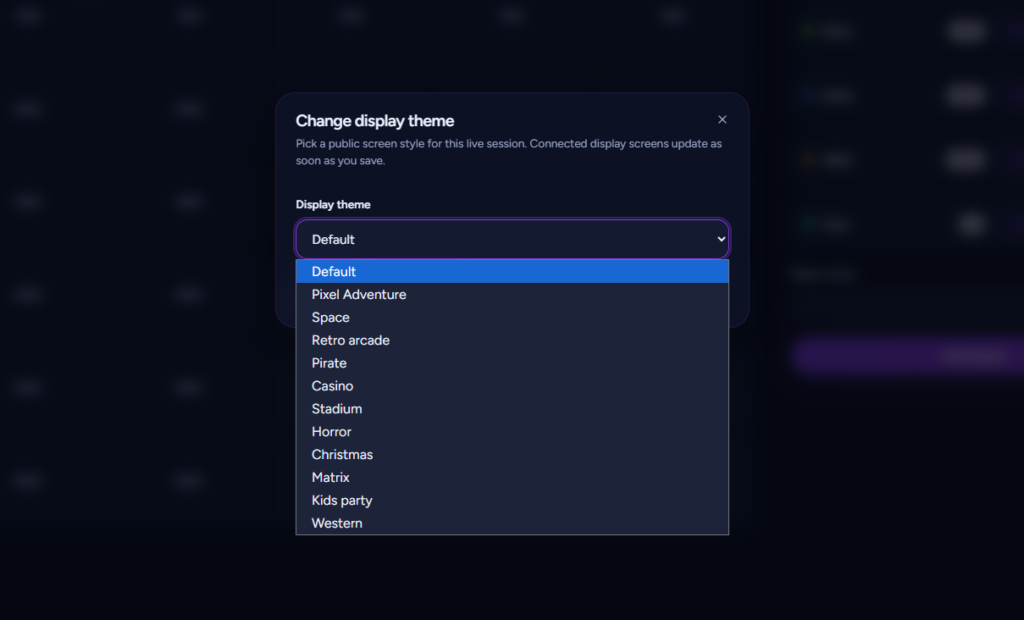
You can also change the display theme during a live session, and connected display screens update after you save.
Trigger media during the show
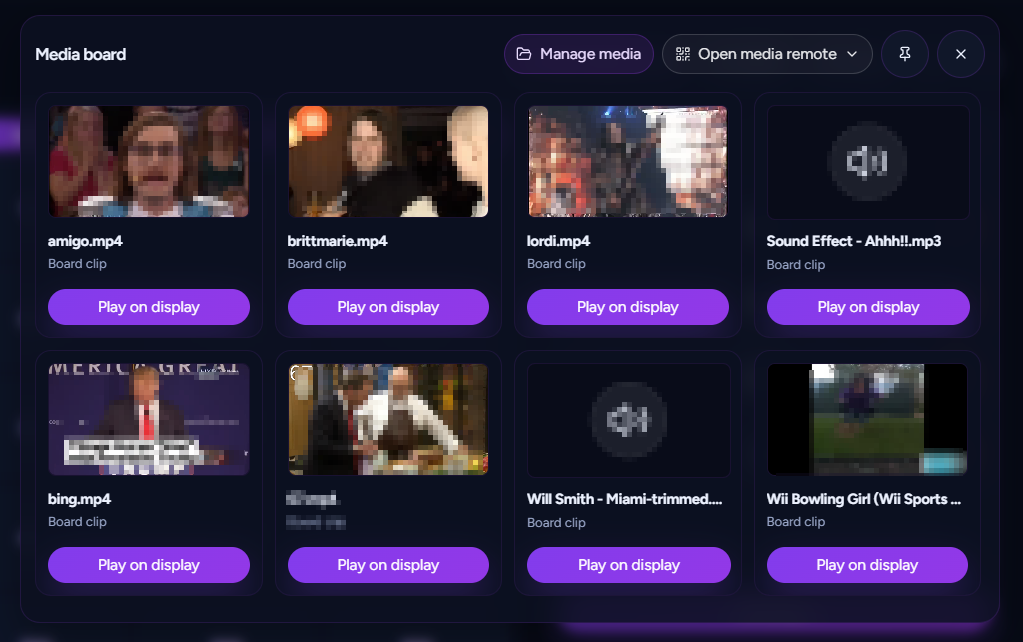
If your show uses the media board, clips saved to the show can be triggered from the live host view. This is useful for transitions, reactions, intro moments, and big reveals.
Use panels without losing the board
The host view includes panels for players, media, and events. Pin the panels you use often and hide the ones you do not need during a specific event.
Host control room checklist
- Open the public display before the first question.
- Keep the host view private.
- Open one card at a time.
- Reveal the answer only when the room is ready.
- Lock each played card.
- Show the scoreboard between rounds.
Run the room from one screen
QuizStage is designed so the host can keep the whole live quiz moving from a single control room while the audience gets a polished big-screen display.